
Go to the website link below (copy and paste into your web browser bar) and then click on the blue button on the right -> Download Host. Make sure to select the third option in the drop down menu, the .msi file.
https://www.remoteutilities.com/download/
After downloading it, just double click it to run the installer.
Set up a password for remote access authentication. I will have to use this password to log into your computer.
Here are the instructions for running the installer:
https://www.remoteutilities.com/support/docs/installing-and-uninstalling/#Installing_Host
After you have installed it, now look for the symbol upwards arrow symbol ( ^ ) in the bottom right corner of your desktop screen on the taskbar, it is a little to the left of the speaker icon.
Click it, and then you should see the small blue icon (or yellow) that has two small rectangles in the system tray, this is the program you just installed.
Enabling Internet-ID
1. Right-click the Host icon in the system tray and select Internet-ID connection settings: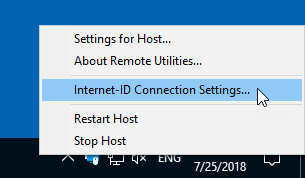
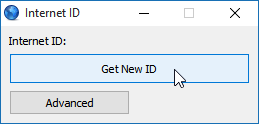
2. Click Get New ID:
3. A new Internet-ID code will be generated for this Host:
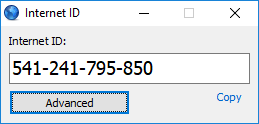
4. Copy the Internet-ID code and close the window.
Completed! Now please send me the Internet ID Number and the password you entered during the installation.
You can also call me while you are doing this, or if you encounter any complications, email me.